

Themes
A theme is a coordinated set of colors for text, background, accents, and hyperlinks that defines the overall look of your workbook. Theme colors are also available wherever you pick a color, such as font, fill, borders, or conditional formatting, so changing the theme updates everything that uses a theme color.
How to Use It
- Click the Themes icon in the toolbar.
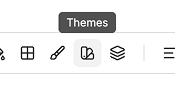
- In the menu, click any theme to apply it to the workbook. The small swatches next to each name preview its accent colors.
- To create or edit a custom theme, click Manage Themes. A drawer will open on the right side of the screen.
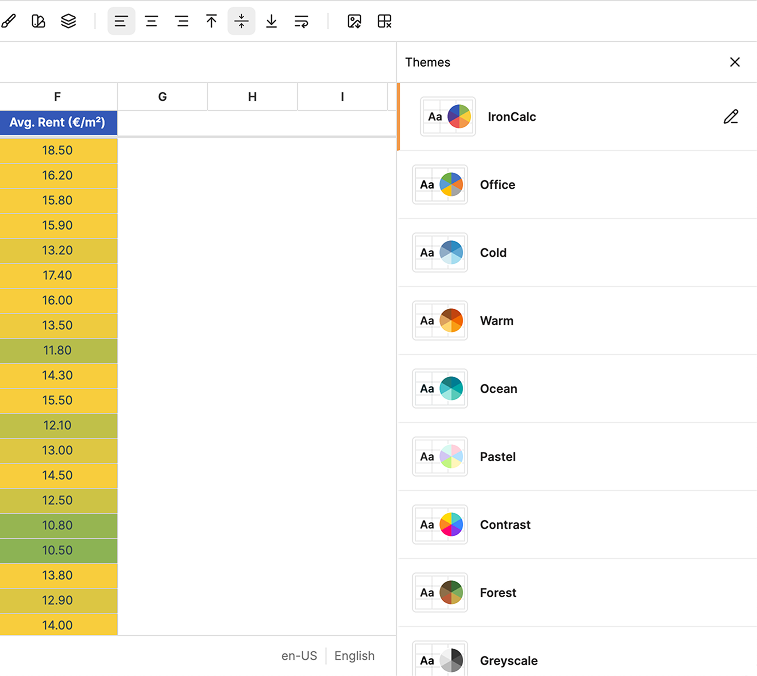
- In the drawer, click a theme to select and apply it.
- With a theme selected, click the pencil button to customize it.
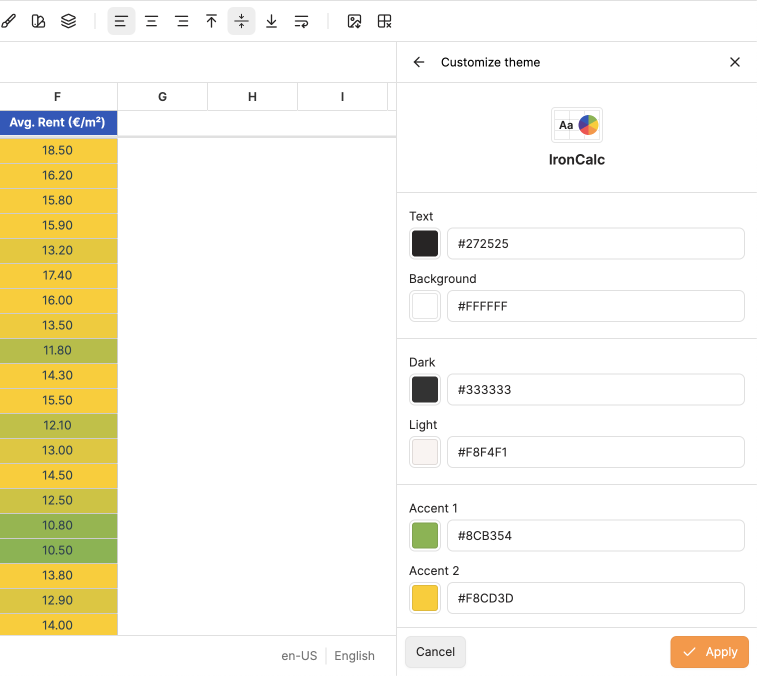
- Adjust the colors:
- Text and Background: the main colors used for cell text and the sheet background.
- Dark and Light: secondary colors used by some elements.
- Accent 1 to 6: used in styles, charts, and conditional formatting palettes.
- Hyperlink and Followed hyperlink: colors for unvisited and visited hyperlinks.
- For each color, click the swatch to open the color picker, or type a hex value directly in the input.
- Click Apply to save your changes, or Cancel to discard them.
Customizing a theme creates a new entry named Custom at the top of the list. Only one custom theme can exist at a time, so applying changes again overwrites it.
Theme Colors in the Color Picker
Wherever you pick a color in IronCalc, such as for font, fill, or borders, the color picker is organized into groups.
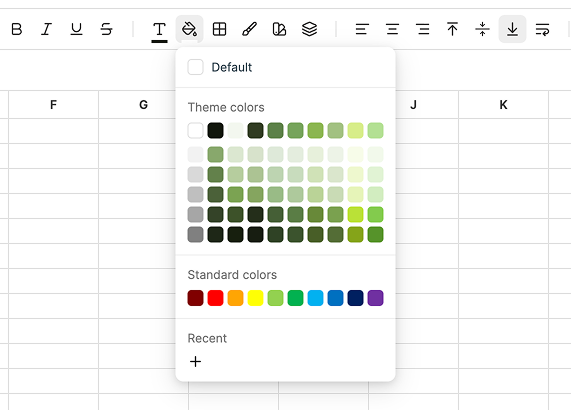
- Theme colors: the base colors of the active theme (Text, Background, Dark, Light, and Accent 1 to 6), each shown with a row of lighter and darker variations. Lighter variations mix in white and darker variations mix in black, giving you a wider palette built from the same set of colors. Theme colors update automatically whenever you switch or edit the theme, so cells using them always stay in sync.
- Standard colors: a fixed set of common colors that don't depend on the theme, so they look the same no matter which theme is active.
- Recent: the colors you've used most recently.
Compatibility
If you import a file that uses a theme not in the list, IronCalc keeps that theme and adds it to the Themes menu and drawer. You can leave the imported theme as is, or switch to one of IronCalc's built-in themes at any time.
Exported files work the same way: the theme is preserved in the file, so it opens with the same colors in other platforms. If the file is later edited there, that platform may overwrite the theme with its own.